Integrating Notification into the Management Platform
Scenario: You want to integrate notification devices, such as ESPA Paging System or GSM Modem SMTP Email with the management platform to send notifications out (for example, during an emergency event such as earthquake).
Reference: For background information, see the reference section.
Workflow diagram:
Prerequisites:
- The Notification extension is installed/upgraded and configured in the project.
- You have logged into the Desigo CC client.
- You have configured a user group and assigned Scope rights to the user group for working with the notification extension. (See Assign Scope to a User Group in Security).
- You have enabled the application rights for the Notification extension (RENO, RENO Plus, MNS) and assigned the application rights to the user group. (See Additional Notification Procedures)
- (Applicable only for MNS license users)You have imported Process Visualization and Control System (PVSS) Libraries. (See Additional Notification Procedures)
- System Manager is in Engineering mode.
- System Browser is in Application View.
Steps:
You need to first migrate the existing RENO data from RENO to Notification system.
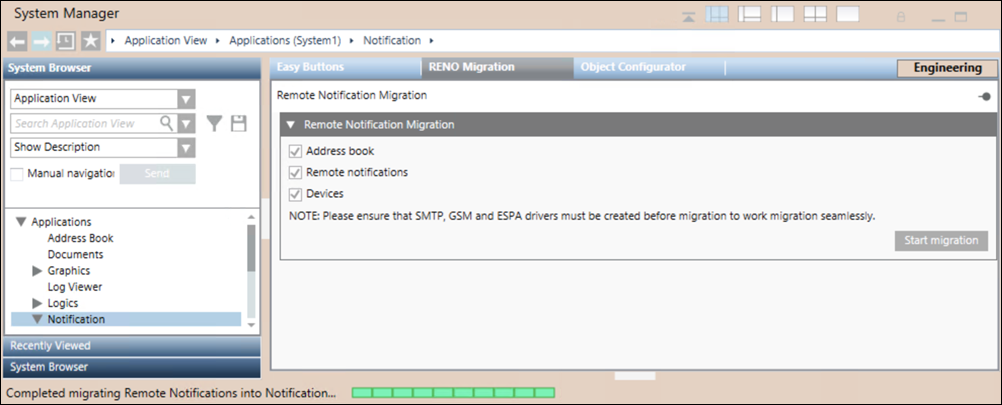
- You have created the required drivers (SMTP Email Driver, GSM Modem Driver, ESPA Paging System Driver) before migrating the RENO artifacts, otherwise the migration does not take place.
- Select Applications > Notification.
- Select the RENO Migration tab to start RENO Devices migration to Notification.
- The RENO devices are migrated successfully into Notification.
- Perform the required configuration depending on the type of the supported Notification device.
- One or more Notification devices are configured.
- Select Applications > Notification > Recipients.
- The Recipients Editor tab displays.
- Perform the following steps to create and configure recipients:
- The recipients are created and configured.
- You have created and configured the recipients that you want to link to the notification template.
- Select Applications > Notification > Notification Templates.
- The Notification Templates tab displays.
- 1 – Create a Message/Live Announcement Template and 2 – Configure the Message/Live Announcement Template the notification (message or live announcement) template.
- The notification template is created and configured and the recipient is linked to the notification template.
- You have created and configured the notification template and linked the recipients to it.
- You have Launch Groups to link the notification template with the incident template.
- Select Applications > Notification > Incident Templates.
- The Incident Templates tab displays.
- 1 – Create Incident Templates and 2 – Configure Incident Templates the incident template.
- The incident template is created and configured.
It is recommended to configure an easy button by associating a notification or an incident template with an easy button and also by changing an easy button icon to the required icon. The configured easy button can be then quickly used by the operator to initiate incidents while working in the Operating mode.
- One or more incident templates or notification templates (message templates or live announcement templates) are configured.
- Navigate to the Easy Buttons editor by selecting either of the following:
– Applications > Graphics > Easy Buttons
– Applications > Notification
- In the Easy Buttons tab, associate a notification or an incident template with an easy button by doing one the following:
– Select Notification > Incident Templates. Drag the incident template into the Easy Buttons tab.
– Select Notification > Notification Templates. Drag the notification template into the Easy Buttons tab.
- Click Save
 .
.
- The respective notification or incident template is saved as an easy button.
- (Optional) To change the easy button icons, do the following:
a. Right-click the easy button icon that you want to change and select Symbol Instance > Replace: The available icons display.
b. Click the new icon from the list of displayed icons.
c. Click Save.
- The easy button icon is replaced with the changed icon.
Once you have configured the easy buttons, you can switch to Operating mode to initiate the incident or send notification.
