In System Browser, select SMTP Email Driver and click the Driver Editor tab.
(Optional) In the Driver Settings expander, modify the description.
In the Configuration Properties expander, proceed as follows:
In the Device Request Timeout field, enter 60000 (value inmilliseconds).
In the Check Status Rate field, enter 30000 (value inmilliseconds).
In the Notification Integration expander, do the following:
Set the Batch Size fieldvalue as 10 (default is 100). Batch size specifies the size in which the request is processed by the driver. The batch size displays the number of devices to which Notification interacts in one instant. For example, if there are 100 devices on which a message has to be displayed and a batch size of 10 is entered, Notification will send the message to batches of 10 devices each. NOTE: Generally, the batch size for the SMTP email driver must not exceed 100 email addresses, even if the integrated SMTP server could potentially handle higher numbers. On the other hand, some SMTP servers might require batch sizes of ten or less. The batch size specifies how many recipient email addresses is added to each message sent. For example, if a message needs to be sent out to 100 email addresses and the batch size is set to 20, five emails with 20 recipients each will be sent out. Large batch sizes, which result in a large number of email recipients in sent emails, can increase the probability that sent messages are classified as Spam (junk email) and will be filtered out.
In the Expected delivery time field, enter a value (default is 10 seconds.). NOTE:Notification does not guarantee the message delivery will be completed within the time entered here. This value is solely used to compute delivery statistics indicating whether message delivery to the SMTP server was on-time or late. On-time or late displays based on the time taken for Notification to deliver the message to the SMTP server and not the time taken to deliver the message to the actual recipient.
Enter a value into the Input messages polling interval field. This is the time the driver needs to check for acknowledgments from recipients (default is 5 seconds).
In the Acknowledgement reply Action field, configure the action in different languages that recipient users need to take to acknowledge messages.
In the Acknowledgement reply signature field, configure the instructions needed to reply to a message. By default the text configured in this field is, When acknowledging this message, please make sure to include the following ID anywhere in the Subject field of the reply message: [MNS- ID of the message
Click Save .
The parameters are configured for the SMTP Email driver.
In the Network Settings expander that displays, do the following:
Enter the Description of the field network.
From Driver Instance drop-down list, select the SMTP Email driver that you want to associate to the SMTP Email field network. NOTE: Only the drivers that are not already associated to a network display in this list. A driver can be associated to only one network.
Click Save.
The SMTP Email driveris added to the fieldnetwork hierarchy.
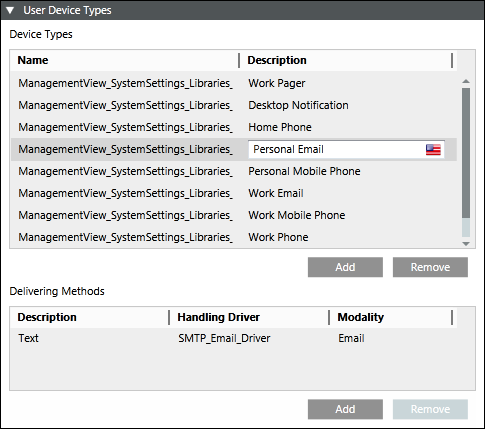
The list of default User Device Types displays under Device Types.
In the Description field, select Personal Email or Work Email.
The DeliveringMethods list displays. NOTE: If the user selects Personal Email, the delivery methods associated with Personal Email are displayed. If the user selects Work Email, the delivery methods associated with Work Email are displayed.
Edit the Description field.
From the HandlingDriver drop-down list, select SMTP Email Driver.
You have added one or more users as Recipient Users
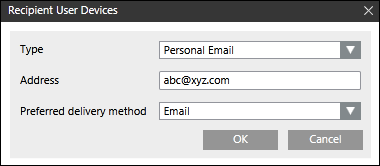
In the Recipient User Devices dialog box, from the Type drop-down list, select Personal Email or Work Email as a recipient device for the corresponding recipient user.
In the Address field, enter their email ID.
The Preferreddeliverymethod field is automatically populated with Email.
Select Project > Field Networks > SMTP Field Network > Incoming Email Server.
Select Configuration Properties.
In the Login Id field of the incoming email server, enter the Login id ofthe email address configured in Reply To Email Address field of the SMTP email server. NOTE: For domain specific email addresses, Login Id must be in the format DomainName\UserID.
Enter the password of the corresponding email account in the Password field of the IncomingEmail Server.
Create an incident template with acknowledgement settings configured and assign these users as recipients to the corresponding message template.
Initiate Incidents
Once the message template is launched, recipients of the message template should receive an email containing the content as described in the corresponding message template with an unique message ID and a link to reply to the corresponding message. If the recipient replies to the message, the acknowledgement status for the corresponding message will be displayed on the user interface under Browse > Message Status.
 and select New SMTP Email Driver.
 .
. and select New SMTP Email Field Network.
 .
. .
. .
.
 .
.