Migrate RENO Devices to Notification
Scenario: You want to migrate the existing RENO artifacts to Notification to be able to use the existing data of Remote Notification and work with the Notification application.
Reference: For background information, see the reference section.
Workflow diagram:
Prerequisites:
- System Manager is in Engineering mode.
- System Browser is in Management View.
Steps:
You must create the required drivers before migrating the RENO artifacts.
- Select Project > Management System > Servers > Main Server > Drivers.
- Click New
 .
.
- Select the driver from the list.
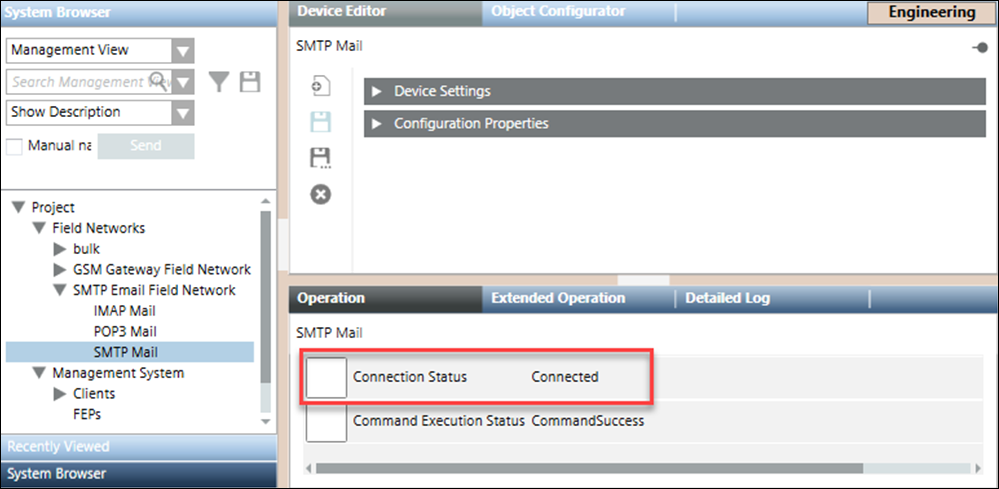
- New SMTP Email Driver.
- New GSM Modem Driver.
- New ESPA Paging System Driver.
- In the Create New Object dialog box, enter the name and description.
- Click OK.
- The SMTP Email, GSM Modem, ESPA Paging System driver are added.
Once the drivers are added, you need to configure the drivers. (For more information, see Additional Device Integration Workflows)
- In System Browser, select Application View.
- Select Applications > Notification.
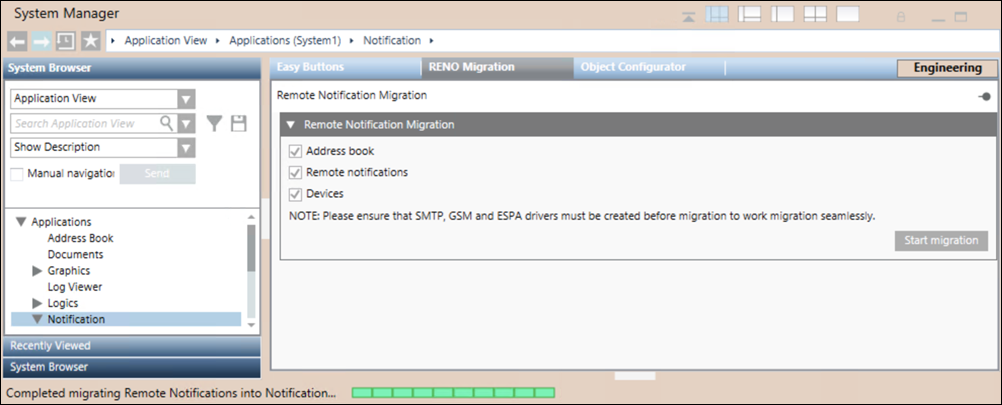
- Select the RENO Migration tab.
- In the Remote Notification expander, select the following checkboxes:
- Address book
- Remote notifications
- Devices
- Click Start migration.
- The migration status displays in the Status Bar.
If not already created, migration internally creates SMTP, GSM or ESPA field networks and devices. (See Configuring SMTP Email, Configuring GSM Modem and Configuring ESPA Paging System)
- The RENO migration to Notification is completed successfully.
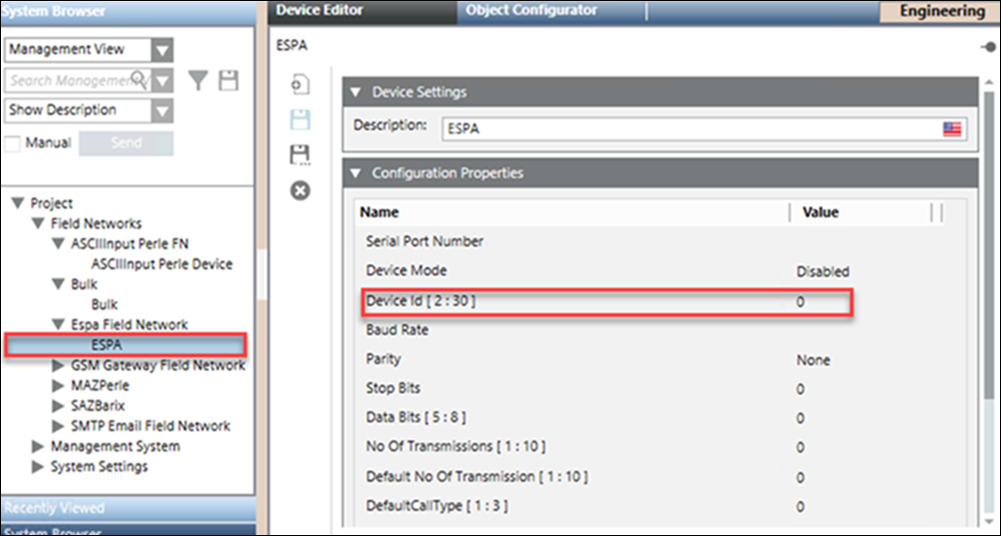
As a next step, the ESPA device ID must be configured.
- In System Browser, select Management View.
- Select Project > Field Networks > [ESPA Field Network] > [ESPA].
- Set the device ID.
- The device ID for the ESPA device is configured.
If the RENO devices are not disabled after migration, the Authorization COM access denied error message displays. To disable RENO devices, do the following:
- Select Project > Management System > Servers > Main Server.
- For a pager device, do the following:
a. In System Browser, select Pager.
b. In the RENO Configurator tab, open the ESPA Protocol expander.
c. Deselect the Enabled checkbox.
- For an SMS device, do the following:
a. In System Browser, select SMS.
b. In the RENO Configurator tab, open the SMS GSM Provider expander.
c. Deselect the Enabled checkbox.
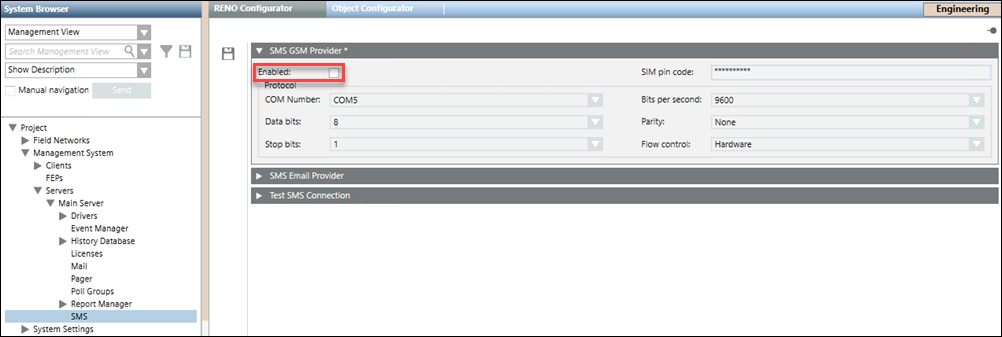
- The RENO devices pager and SMS are disabled.
Verify the migrated RENO artifacts, such as recipients and templates, before proceeding to work with the Notification application.
- In System Browser, select Application View.
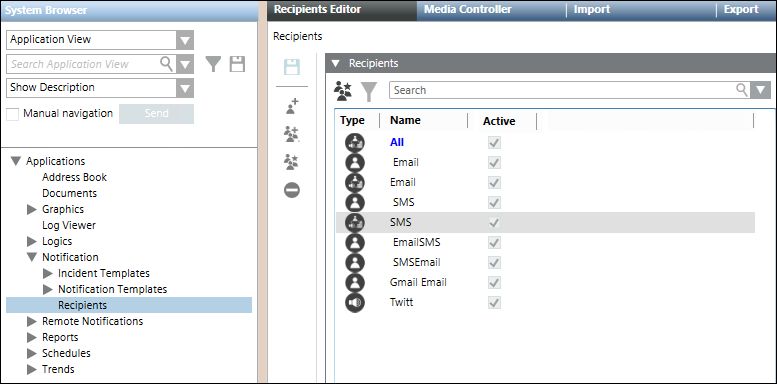
- Select Applications > Notification > Recipients.
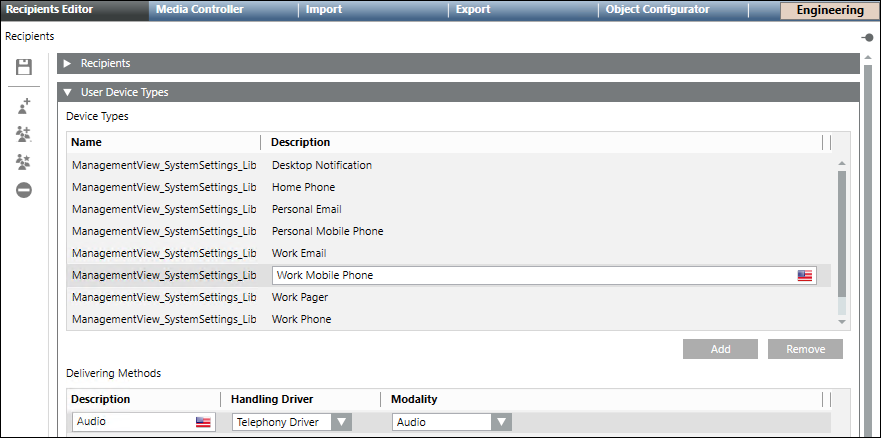
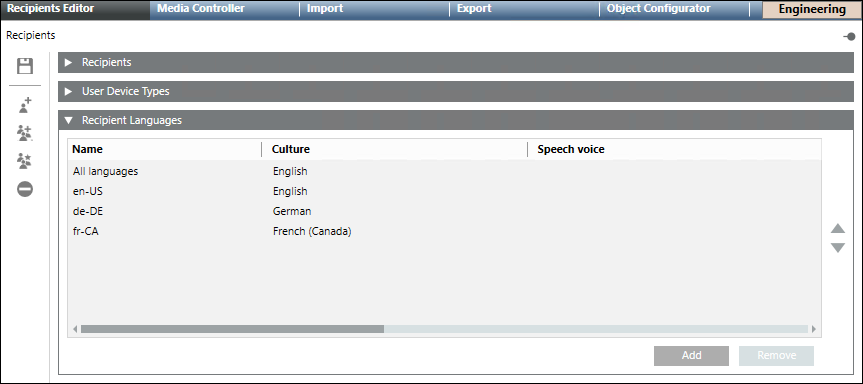
- In the Recipients Editor section, do the following:
a. In the Recipient User Devices expander, verify that all the RENO preferred devices and fallback devices are added in sequence.
b. In the Recipient Languages expander, verify that the RENO recipient language is mapped to the Notification recipient preferred language.
NOTE: If the language does not exist in Notification during migration, it is created and assigned to the recipient.
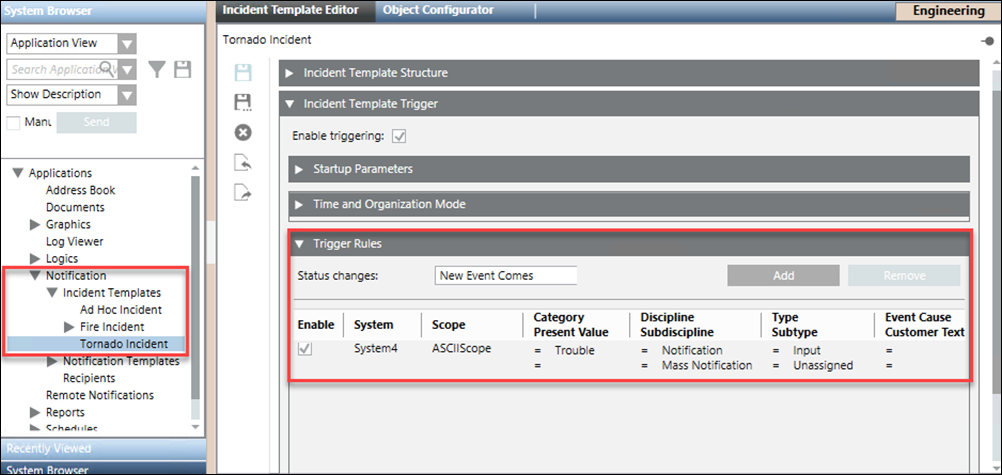
- Select Applications > Notification > Incident Templates.
- In the Incident Template Editor tab, do the following:
a. Open the Incident Template Trigger expander.
b. Verify that the RENO procedures Triggers and General Settings are mapped to the Incident Template Trigger of the Notification incident templates.
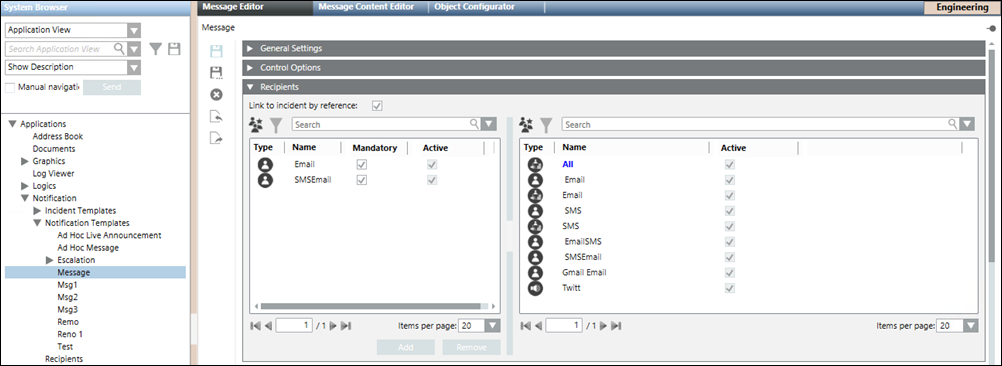
- Select Applications > Notification > Notification Templates > [Message Template].
- In the Message Editor tab, do the following:
a. Open the Recipients expander.
b. Verify that the RENO procedures Message Tailoring and Recipients are mapped to Notification message templates.
NOTE: Escalation rules of RENO are not migrated to Notification templates during RENO migration.
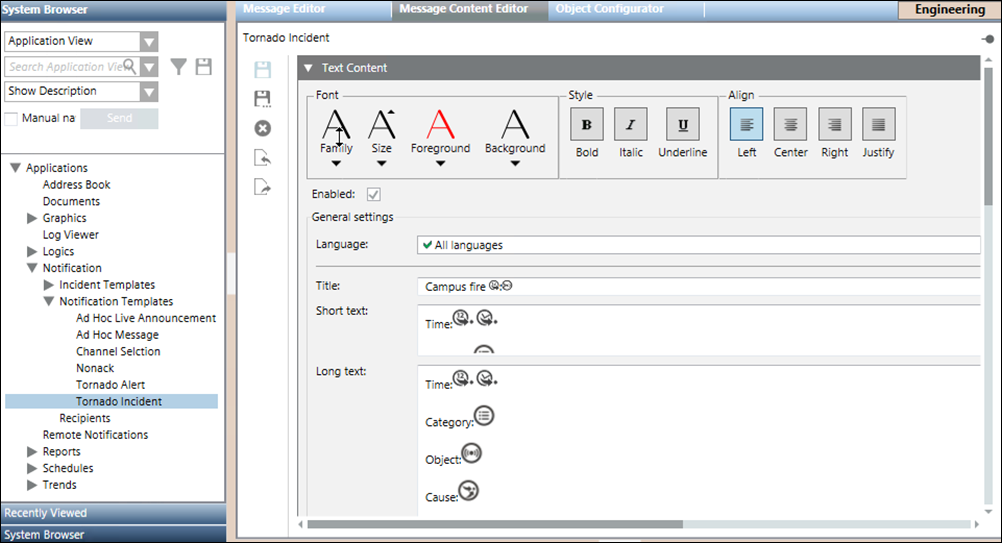
- In the Message Content Editor tab, do the following:
a. Open the Text Content expander.
b. Verify that RENO email device Subject is mapped to the Notification message template Title, Body to Long Text and SMS/pager Body is mapped to Short Text.
NOTE: If both, SMS and pager body, are configured in the RENO procedure, then Notification selects any one from the corresponding SMS and Pager Body and assign it to the short text of Notification message template.
- Select Project > Field Networks > [Device Field Network] > [Device].
- In the Device Editor section, do the following:
a. Verify that RENO Mail device is mapped to Notification SMTP, IMAP and POP3 devices.
b. Verify that RENO GSM SMS device is mapped to Notification GSM device.
c. Verify that RENO Pager device ESPA configuration is mapped to Notification ESPA device.