In System Browser, select Web Feed Publisher Driver and click the Driver Editor tab.
(Optional) In the Driver Settings expander, modify the description.
In the Configuration Properties expander, proceed as follows:
In the Device Request Timeout field, enter 30000. The Device Request Timeout is the maximum time required to receive a response after sending the request to the device. The time is measured in milliseconds.
In the Check Status Rate field, enter 300000.The Check Status Rate is the duration after which, the driver checks the status of all the devices controlled by this driver. The time is measured in milliseconds.
In the Notification Integration expander, proceed as follows
In the Batch Size field,set the value as 10 (default is 100). Batch size specifies the size in which the request is processed by the driver. The batch size displays the number of devices to which Notification interacts in one instant. For example, if there are 100 devices on which a message has to be displayed and a batch size of 10 is entered, Notification will send the message to batches of 10 devices each.
In the Expecteddeliverytime field, enter the time in seconds (default is 5 seconds). NOTE :Notification does not guarantee the message delivery will be completed during the time entered. The expected delivery time is solely used to compute delivery statistics indicating whether the message was delivered to the Web Feed Device or the CAP Feed Device on-time or late.
Click Save .
The parameters are configured for the web feed publisher driver.
Select Project > Field Networks > Web Feed Publisher Field Network.
Click the Network Editor tab and open the Network Settings expander.
The Description field displays the description.
From Driver Instance drop-down list, select the web feed publisher driver youwant to associate with the web feed publisher driver field network. NOTE: Only the drivers that are not already associated to a network display in this list. A driver can be associated to only one network
Click Save.
The Web Feed Publisher Driver nodeis added under the Field Network hierarchy.
Select Project > Field Networks > Web Feed Publisher Field Network.
In the Description field, enter a description for the fieldnetwork.
From Driver Instance drop-down list, select the Web Feed Publisher Driver.
Click Save .
The Web Feed Publisher Driver nodeis added to the Field Network hierarchy.
Click Create .
The Create New Object dialog box displays.
From the Child type drop-down list, select a device. NOTE: The options available for selection in the Child type drop-down list are Web Feed Device and CAP Feed Device.
For the selected device, enter a name and description.
Click OK.
Select the Device Editor tab.
Enter appropriate values for the other fields as detailed in Configuration Properties for Web Feed Device and CAP Feed Device.
Verify that a RSS/Atom feed was generated by the Web Feed device by performing the following steps:
Enter the URL http://<URLtowebsite>/MNSFeeds/<id><prefixname>_rss_en_US.xml and http://<URLtowebsite>/MNSFeeds/<id><prefixname>_atom_en_US.xml respectively in a browser and verify that a feed containing the text of the message template created above is available. Also verify that all the respective .XML message files should be present for corresponding RSS/Atom Feed.
Enter the URL http://<URLtowebsite>/MNSFeeds/<id><prefixname>multimedia_rss_en_US.xml respectively in a browser and verify that a feed containing the multimedia of the message template created above is available. Atom feed is not supported.
Enter the URL http://<URLtowebsite>/MNSFeeds/<id><prefixname>audio_rss_en_US.xml respectively in a browser and verify that a feed containing the audio of the message template created above is available. Atom feed is not supported.
Verify that a RSS/Atom feed was generated by the CAP Feed device by performing the following steps:
Enter the URL http://<URLtowebsite>/MNSCAPFeeds/<id><prefixname>_rss_en_US.xml and http://<URLtowebsite>/MNSCAPFeeds/<id><prefixname>_atom_en_US.xml respectively in a browser and verify that a feed containing the text of the message template created above is available. Also verify that all the respective CAP-XML message files should be present for corresponding RSS/Atom Feed. NOTE: If a message generated by the CAP Feed device is updated, canceled, suspended, or resumed, the <references> tag of the CAP message will have entries of all the previous CAP messages' IDs to which the corresponding message is associated.
Click the hyperlink present in the RSS/Atom feed entry to view the detailed message that was entered in the Long text field of the message template.
The example URL in the verification step assumes that the feeds are published into a folder called MNSFeeds for the Web Feed device and MNSCAPFeeds for the CAP Feed device.
 and select New Web Feed Publisher Driver.
 .
. and select New Web Feed Publisher Field Network.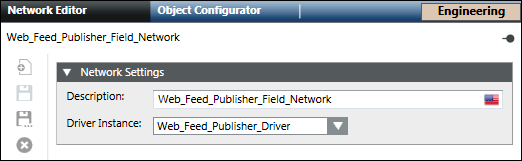
 .
. .
. .
.